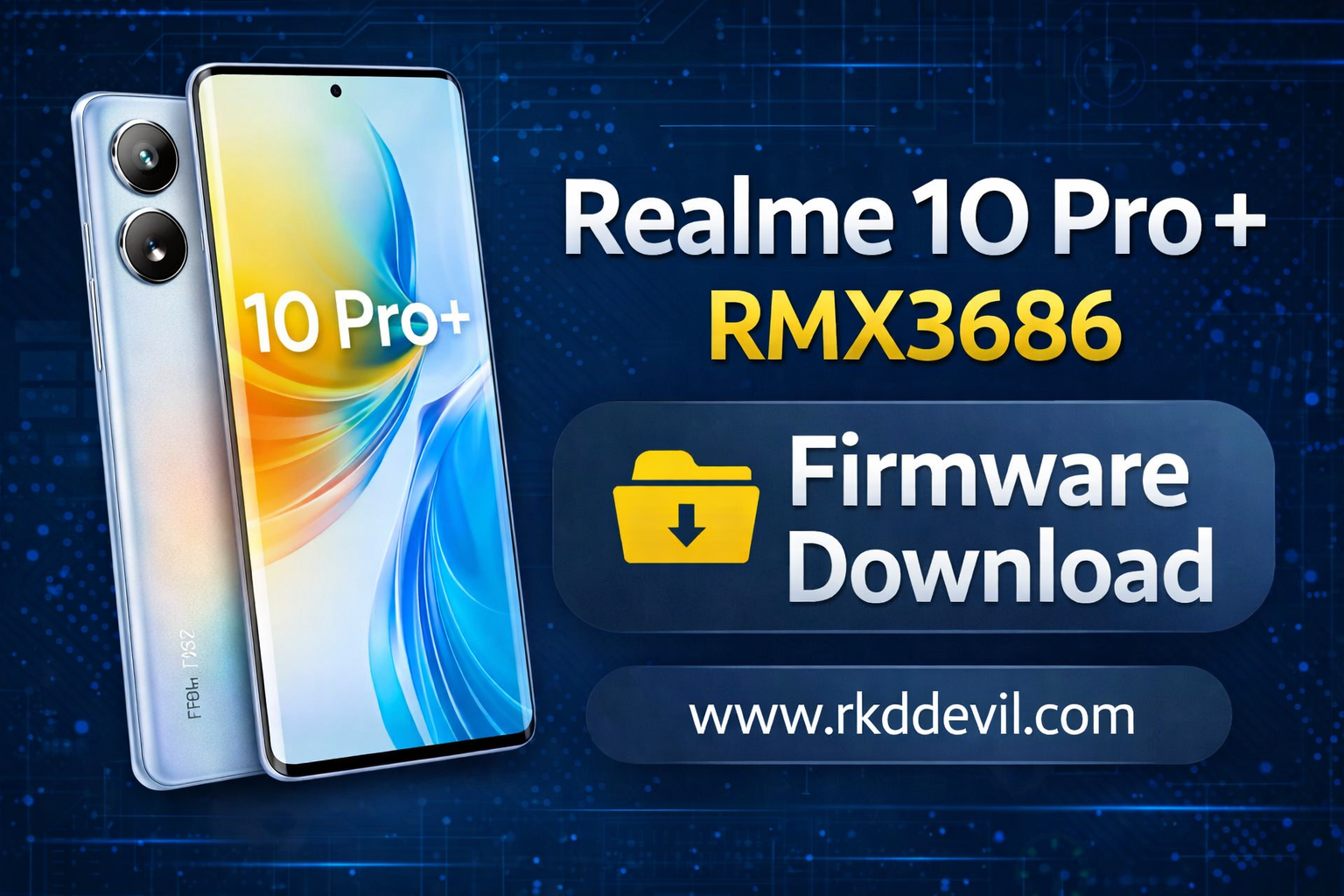
If your Realme 10 Pro+ is stuck on the logo, facing bootloop, lagging after update, or showing software errors, installing the official stock firmware (flash file) is the best solution.
In this detailed guide, you’ll find everything you need about the Realme 10 Pro+ flash file, including features, firmware benefits, installation steps, and safe official download methods.
Realme 10 Pro+
Specifications
📦 What Is a Flash File (Stock Firmware)?
A flash file (also called stock ROM) is the official software provided by Realme for your device. It restores the phone to factory condition.
✅ Uses of Stock Firmware
- Fix bootloop & stuck logo
- Unlock PIN/FRP/DEMO/Privacy Lock
- Remove virus or malware
- Downgrade or upgrade Android version
- Fix software update errors
- Restore dead / bricked phone
- Improve performance & battery life
Realme 10 Pro+ 5G Flash File
Official Stock Firmware Download (India)
| Device Name | Realme 10 Pro+ 5G |
|---|---|
| Market Model | Realme 10 Pro+ 5G |
| Model Number | RMX3686IN |
| Project Number | 22612 |
| Region | India |
| Firmware Type | Official Stock ROM |
📥 Download Flash File
Click the button below to download the official firmware package.
Download Now• This firmware is only for Realme 10 Pro+ 5G (RMX3686IN – India).
• Flashing may erase all user data. Take a full backup first.
• Use the correct flashing tool and instructions to avoid device damage.
Realme 10 Pro+ (RMX3686)
Remote Flash Unlock • Worldwide Support • Safe & Trusted
🔓 Flash Unlock
Professional remote flash unlock service for Realme 10 Pro+ RMX3686.
🌍 Worldwide Support
Service available globally with fast response and secure process.
Contact for Instant Support
💬 WhatsApp +91 7001105863How to Flash Realme 10 Pro+ (RMX3686)
Requirements
- Compatible Flash Tool
- Official Firmware for Realme 10 Pro+ (RMX3686)
- Windows PC & USB Cable
Flashing Procedure
- Download the Flash Tool and the official firmware for Realme 10 Pro+ (RMX3686).
- Extract (unzip) both the flash tool and firmware files to your Desktop.
- Open the flash tool on your PC.
- Load or import the firmware file into the flash tool.
- Power off the device completely.
- Press and hold Volume Up + Volume Down simultaneously.
- While holding both volume keys, connect the phone to the PC using a USB cable.
- The flash tool will detect the device automatically.
- Click Start (if required) and wait for the flashing process to complete.
- Once flashing is finished, disconnect the device and reboot it.
Notes
- Do not disconnect the device during the flashing process.
- Ensure the firmware matches the exact model RMX3686.
- First boot may take several minutes after flashing.