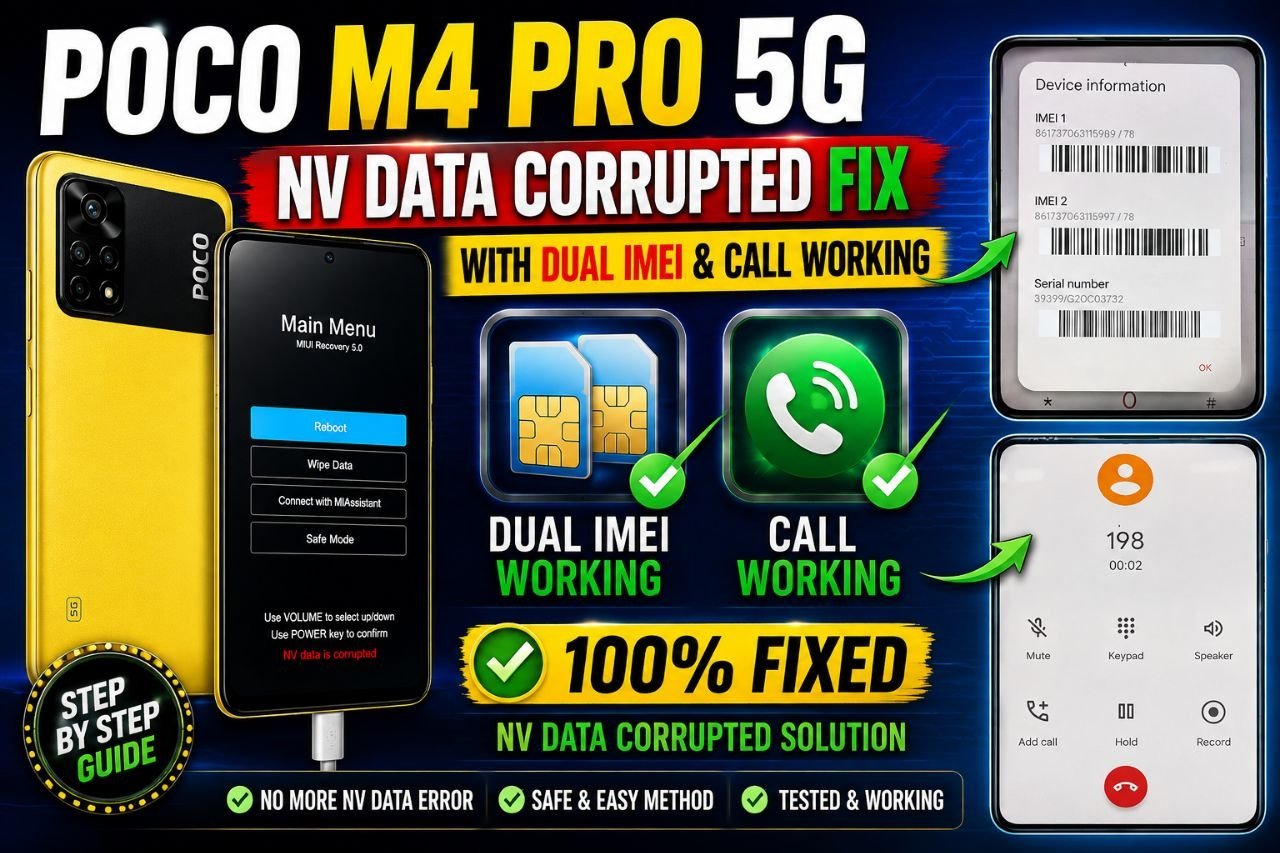
POCO M4 Pro 5G (Evergreen) NV Data Corrupted Fix | Dual IMEI, Baseband & Network Repair
The POCO M4 Pro 5G (Evergreen) is a MediaTek-based smartphone that can sometimes develop serious modem, NV data, baseband, or network-related problems after incorrect firmware flashing, engineering firmware operations, partition damage, or other software-level procedures.
Typical symptoms can include NV Data Corrupted, Unknown Baseband, missing or invalid IMEI information, SIM network problems, or Wi-Fi/Bluetooth identity information becoming unavailable.
This guide explains the symptoms, possible causes, important checks, and a safe repair approach for technicians working on the POCO M4 Pro 5G.
Important: IMEI and network identifiers are regulated information in many countries. Any repair should restore the device’s original, legally assigned identifiers only. Do not generate, change, or clone an IMEI belonging to another device.
POCO M4 Pro 5G NV Data Corrupted – Common Symptoms
A damaged or inconsistent modem/NV configuration can produce several different symptoms.
You may notice:
- NV Data Corrupted warning
- Unknown Baseband
- No SIM network
- Emergency calls only
- SIM card detected but no network registration
- IMEI showing null, invalid, or unavailable
- Mobile network disappearing after firmware flashing
- Wi-Fi or Bluetooth address problems
- Modem information missing
- Device repeatedly losing network configuration
The exact symptoms depend on which partitions or calibration data have been damaged.
Why Does NV Data Become Corrupted?
There isn’t always a single cause. Common technician-level causes include:
1. Incorrect Firmware
Installing firmware intended for another variant, region, or hardware configuration can create compatibility problems.
Always verify the exact device model, codename, chipset, firmware build, and region before performing low-level operations.
2. Engineering Firmware Operations
Engineering or service firmware can be useful for diagnostics and repair, but inappropriate flashing or partition operations may affect modem-related data.
3. Damaged NV/NVDATA Information
MediaTek devices maintain important modem and calibration information in protected storage areas. If these areas become inconsistent or corrupted, the phone may lose network functionality.
4. Interrupted Flashing
A failed or interrupted firmware process can leave the device in an incomplete software state.
5. Partition Damage
Accidental formatting, incorrect write operations, or using an unsuitable firmware package can damage partitions required by the modem subsystem.
How to Check the Problem Before Repair
Before changing anything, technicians should collect the device’s original information.
Check:
Model: POCO M4 Pro 5G
Codename: Evergreen
Platform: MediaTek
Baseband: Check from device information
IMEI 1: Check using the phone’s official diagnostic interface
IMEI 2: Check using the phone’s official diagnostic interface
SIM detection: Verify both SIM slots where applicable
Network registration: Check whether the device registers with the carrier
Also record the original firmware/build information before making changes.
This diagnostic step is important because an apparent “NV Data Corrupted” problem may actually be caused by an incompatible firmware package, modem mismatch, or another software problem.
POCO M4 Pro 5G (Evergreen) Firmware Download
Need the correct firmware for your POCO M4 Pro 5G (Evergreen)? Download the available official ROM/firmware files and use the appropriate package for your device and repair requirements.
⚠️ Always verify the exact model, region and firmware version before flashing.
POCO M4 Pro 5G Baseband Fix
If the phone reports Unknown Baseband, first determine whether the problem is software-related.
A useful diagnostic sequence is:
- Confirm the exact POCO M4 Pro 5G variant.
- Verify the codename and firmware compatibility.
- Check the current baseband information.
- Check whether the device detects the SIM.
- Confirm whether the original IMEI information is available.
- Check for NV/NVDATA-related errors.
- Use the correct official or authorized service firmware for the device.
- Reboot and perform the network checks again.
- Confirm that the baseband and network registration have returned.
Do not immediately erase modem-related partitions simply because the phone shows a network error. Incorrect low-level operations can make the problem significantly worse.
Dual IMEI Repair – Important Information
For a technician repairing a legitimate customer device, the objective should be to restore the device’s original factory-assigned identifiers, not create a new identity.
If the original identifiers are unavailable, the correct procedure depends on the country, carrier, manufacturer, and applicable regulations.
After a legitimate repair, verify:
- IMEI 1 is present
- IMEI 2 is present where supported
- Baseband is detected
- SIM cards are detected
- Network registration works
- Calls and mobile data function normally
Never use another phone’s IMEI or randomly generated identifiers.
POCO M4 Pro 5G NV Data Corrupted Fix – Video Guide
Watch the complete repair video to learn about the POCO M4 Pro 5G (Evergreen) NV Data, Baseband and network-related repair process.
Network & Signal Verification
After completing a software repair, don’t stop at the IMEI screen.
Perform a complete network test:
SIM Test
Insert a known-working SIM and confirm that the device detects it.
Network Registration
Check whether the phone connects to the appropriate mobile network.
Calling Test
Make an outgoing and incoming call where supported.
Mobile Data
Enable mobile data and verify internet connectivity.
Signal Stability
Check whether the signal remains stable after rebooting the device.
Baseband Verification
Confirm that the baseband is displayed correctly rather than showing “Unknown.”
🔧 Professional Remote Mobile Repair Service
Need help with a software-related mobile repair issue? Get professional Remote Repair Support from our team. We provide remote assistance for supported devices using secure remote-access tools.
Worldwide service • Fast response • Secure remote assistance
POCO M4 Pro 5G NV Data Corrupted – Repair Checklist
For technicians, this checklist can help prevent unnecessary mistakes:
Before repair
- Confirm POCO M4 Pro 5G
- Confirm Evergreen codename
- Record firmware/build
- Check baseband
- Check original device identifiers
- Check SIM detection
- Identify the exact error
During repair
- Use compatible firmware
- Avoid unnecessary formatting
- Preserve legitimate customer data where possible
- Do not write identifiers from another device
- Use appropriate authorized/service procedures
After repair
- Check baseband
- Check original IMEI information
- Test SIM detection
- Test network registration
- Test calls
- Test mobile data
- Reboot and test again
Frequently Asked Questions
What is POCO M4 Pro 5G NV Data Corrupted?
It generally refers to a problem involving modem/NV-related configuration or storage information that can cause network, baseband, or device-identity-related errors.
Can NV Data Corrupted cause Unknown Baseband?
Yes. Depending on the underlying problem, damaged or inconsistent modem-related data can be associated with an Unknown Baseband condition.
Can the POCO M4 Pro 5G network problem be caused by flashing?
Yes. Incorrect firmware, incompatible low-level software, interrupted flashing, or improper partition operations can contribute to network-related problems.
Does fixing NV Data automatically fix the network?
Not necessarily. The actual cause must first be identified. Network problems can also originate from firmware incompatibility, modem software, hardware faults, SIM issues, or carrier/network conditions.
Can dual IMEI be restored?
For a legitimate repair, the goal is to restore the device’s original factory-assigned identifiers using an appropriate lawful service procedure. Do not use another device’s identifiers.
Final Words
The POCO M4 Pro 5G (Evergreen) NV Data Corrupted problem can be frustrating because several different software conditions can produce similar symptoms. A professional repair should therefore begin with diagnosis rather than immediately formatting or rewriting sensitive modem partitions.
A proper workflow should verify the device variant, firmware compatibility, baseband status, legitimate device identifiers, SIM detection, and network registration before and after the repair.
If you’re a mobile repair technician, keeping a record of the original firmware and device information before performing any low-level operation can make troubleshooting considerably safer and easier.
Related search topics: POCO M4 Pro 5G NV Data Corrupted Fix, POCO M4 Pro 5G Baseband Fix, POCO M4 Pro 5G Network Problem, POCO M4 Pro 5G Evergreen Repair, POCO M4 Pro 5G Unknown Baseband, POCO M4 Pro 5G NVRAM/NVDATA Problem, POCO M4 Pro 5G SIM Network Fix.