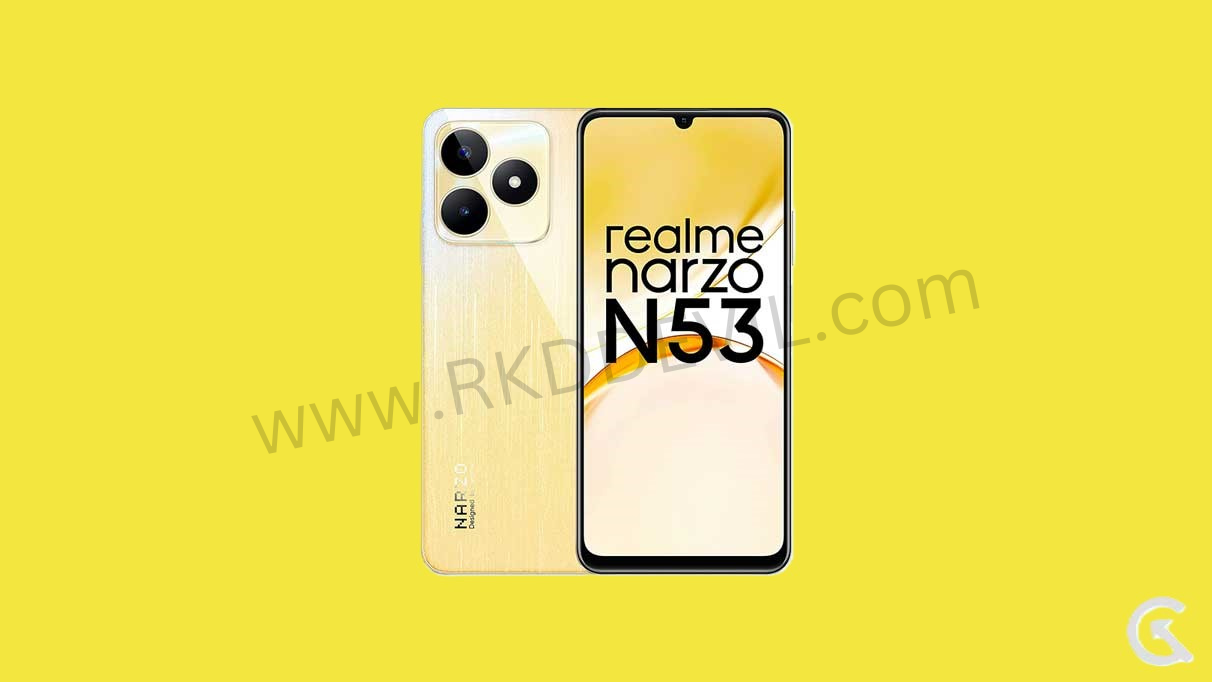

If your Realme P4x RMX5108 smartphone is stuck on the logo, facing bootloop issues, or suffering from software bugs, installing the official flash file (Stock ROM) is the best solution. Flashing the original firmware helps restore your device to factory condition and improves overall performance.
In this article, you’ll find complete details about the Realme P4x RMX5108 flash file, its benefits, requirements, and a step-by-step flashing guide.
Flashing the Realme P4x RMX5108 stock ROM is the most effective way to fix software-related issues and restore your device’s original performance. Always ensure you use the correct firmware and tool to avoid errors.
What is Realme P4x RMX5108 Flash File?
The Realme P4x RMX5108 flash file is the official stock firmware provided for repairing and restoring the device’s operating system. It is used with flashing tools to reinstall Android software safely.
This firmware is helpful when:
- Phone is dead or stuck on logo
- Device keeps restarting (bootloop)
- Software update failed
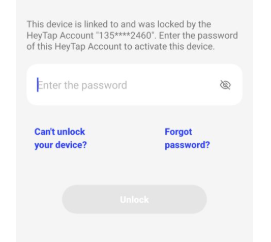
- PIN/FRP/DEMO lock issue
- Lagging or crashing apps
Benefits of Flashing Stock ROM on Realme P4x
- Fix software bugs and system errors
- Remove malware or virus issues
- Restore phone to factory state
- Improve performance and stability
- Fix IMEI or network-related software issues
- Unbrick dead or soft-bricked devices
Realme P4x Firmware
Model: RMX5108
PCB: 25680
Version: 15.0.2.740 EX01
Region: India
How to Flash Realme P4x RMX5108 Stock ROM
- Download and extract the Realme P4x RMX5108 flash file on your PC
- Install USB drivers on your computer
- Open Realme Flash Tool
- Load firmware file
- Power off your phone
- Connect the phone to PC using USB cable
- Click on Flash button
- Wait until the flashing process is complete
- Disconnect the device and reboot
The first boot may take a few minutes.
Frequently Asked Questions
Is flashing safe for beginners?
Yes, flashing can be safe for beginners when done correctly. Users should carefully follow instructions, use the correct firmware for their device model, and back up important data before starting.
Will flashing remove the FRP lock?
YES, flashing firmware remove the Factory Reset Protection (FRP) lock.
Can I flash firmware without a PC?
No, firmware flashing generally requires a PC or laptop to run flashing tools and properly connect the device in download or fastboot mode.
Does flashing firmware void the warranty?
Installing official or stock firmware usually does not void the warranty. However, flashing custom or unofficial firmware may void the warranty, depending on the manufacturer’s policies.